
1️⃣ Transferring funds to a Samaritan debit card
-
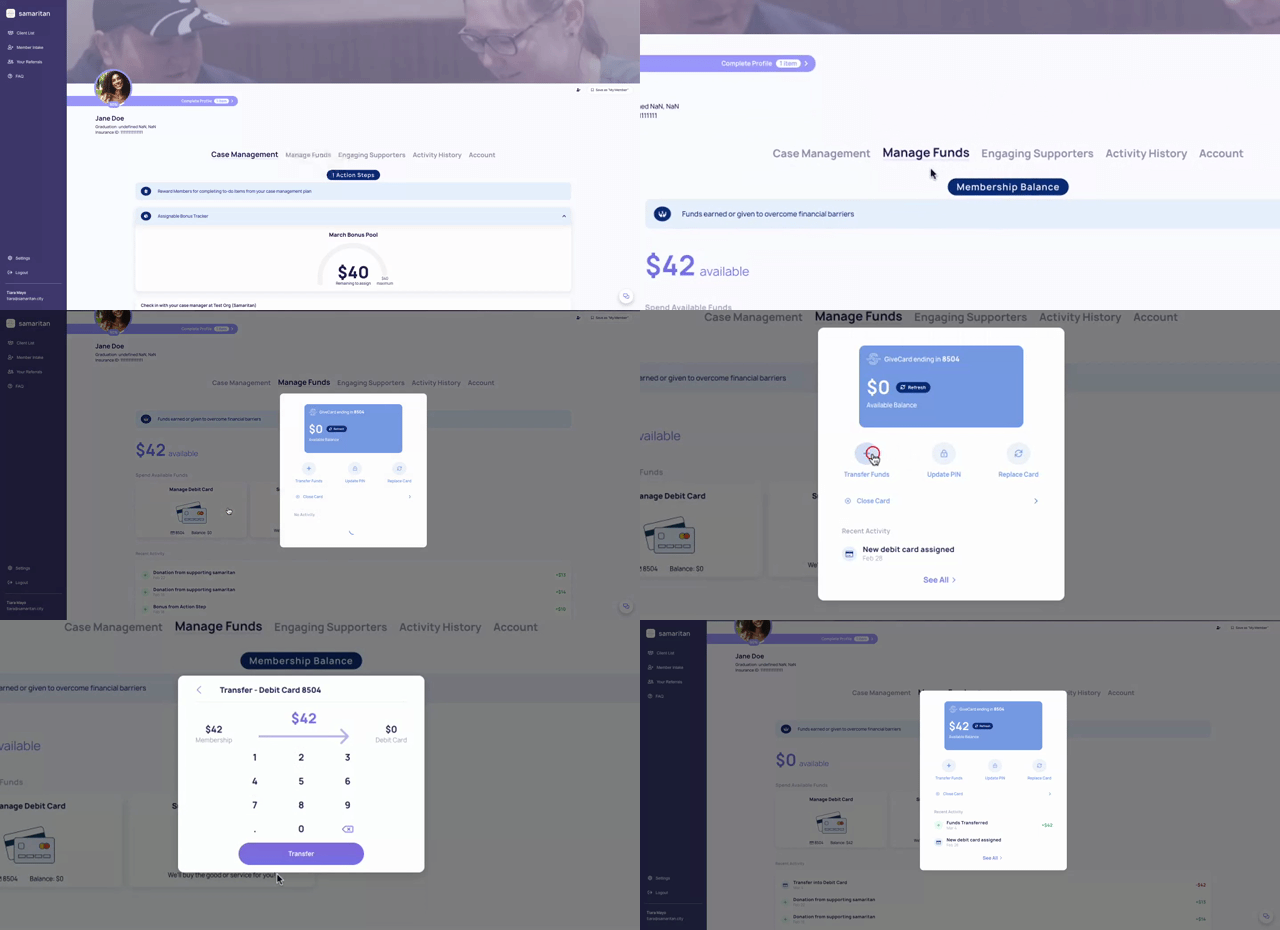
To assign a debit card, go to the "manage funds" section in a Member's profile.
-
You will need the last 4 digits of the physical Givecard for activation. See: samaritan givecard experience guide for physical vs virtual card activation.
-
The card will be activated immediately once you add it to the Member's profile—no additional activation steps are necessary!
After a card is assigned to an enrolled member, you can tap on "debit card" to view the card balance and transfer funds.
💡helpful Tip
You can also assign a PIN or replace a lost card directly in the app by clicking on "debit card."
2️⃣ redeeming funds via purchase request
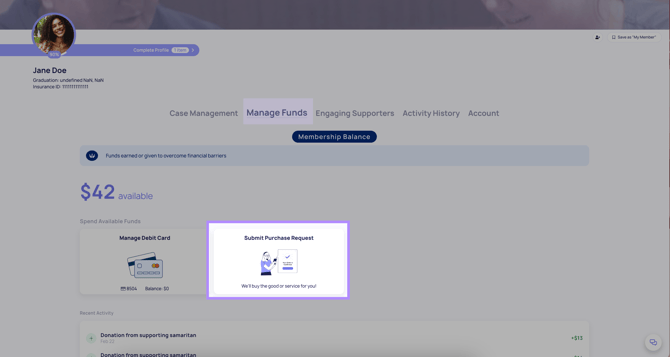
You can find each Member's balance in their profile, under the title "manage funds".
A purchase request is like sending the Samaritan team on an errand to pay a bill, make a specific purchase, or issue a money order. To initiate a purchase request, simply tap on “purchase request” in the member profile and select the category that matches your request.
💡helpful Tip
Make sure to fill in any additional information that we may need to complete your request, such as the account number for a bill payment.
Once you tap “confirm”, your request will be sent to our team. We strive to follow up on each request within 24-48 hours.
Next Read: how to assign a debit PIN