---
title: updating a Member's profile after sign-up
description: how to update a member's profile photo
---
[Skip to content](https://kb.samaritan.city/partner/what-updating-a-members-profile-photo-or-story-after-sign-upquestion-is-your-article-answering#main-content)
English
Show submenu for translations

Open main navigation
Close main navigation
- English
Show submenu for translations
- Contact us
Contact us
How can we help you?
- There are no suggestions because the search field is empty.
1. [Samaritan Partner Learning Hub](https://kb.samaritan.city/partner?hsLang=en)
2. [FAQs](https://kb.samaritan.city/partner/faqs?hsLang=en)
# updating a Member's profile after sign-up
## 💬 Keeping a Member’s profile up to date ensures their story and information are accurately represented.
### **🔑 Access the Member’s Profile**
**samaritan platform:[partner.samaritan.city](http://partner.samaritan.city)**
To get started:
1. Navigate to your **Member list**
2. Select the appropriate Member
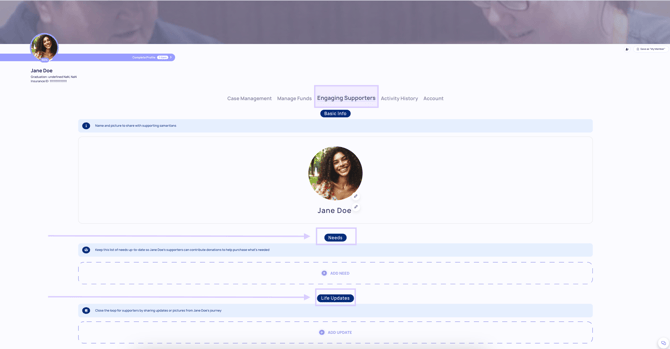
3. Open the **Engaging Supporters** tab
*From here, you can manage key aspects of the Member’s profile.*
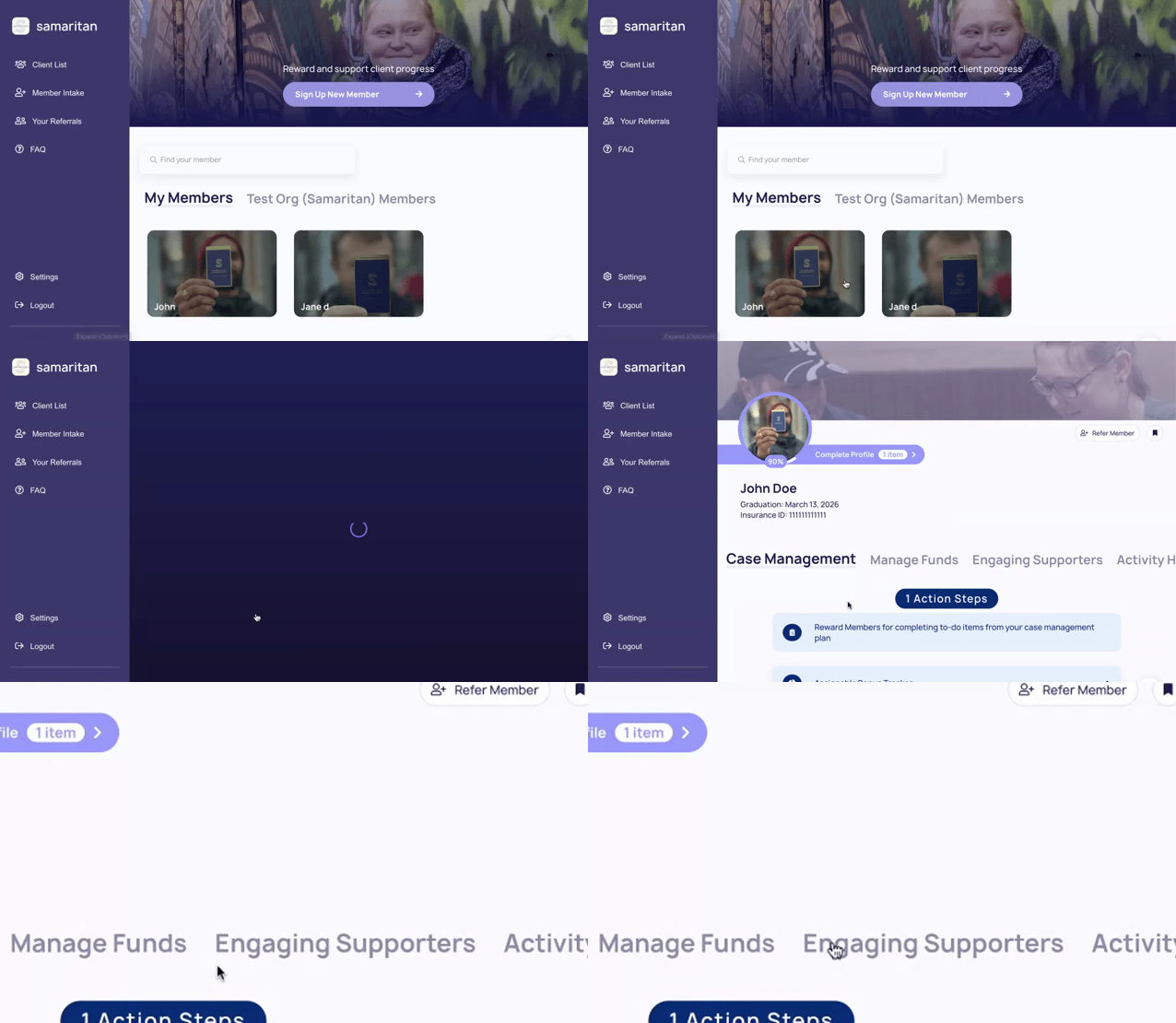
### **👥 Update the Member’s Profile Story**
To edit or add to a Member’s story:
1. Click **Add Update**
2. Enter new information or make edits
3. Save your changes
This helps ensure the Member’s story stays current and reflects their latest needs and progress.
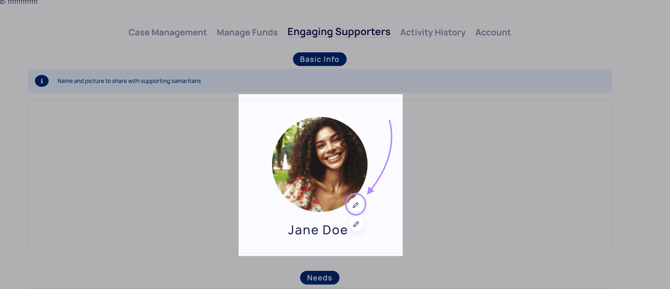
### **📸 Edit the Member’s Profile Photo**
To update a Member’s profile photo:
1. Locate the **pencil icon** in the top-right corner of the current photo
2. Click the icon
3. Upload a new image or adjust the existing one
4. Save your changes
### **You’re all set!** Keeping profiles updated helps create a more accurate and engaging experience for both Members and supporters.
***Next Read: [capturing client progress over time](https://kb.samaritan.city/partner/capturing-client-progress-over-time?hsLang=en)***
- [General](https://kb.samaritan.city/partner/general?hsLang=en)
- [FAQs](https://kb.samaritan.city/partner/faqs?hsLang=en)
- [Getting started](https://kb.samaritan.city/partner/getting-started?hsLang=en)
[](http://www.samaritan.city?hsLang=en)
[mailto:email@email.com](mailto:email@email.com)
Copyright © 2026, City of Samaritans, PBC