---
title: samaritan givecard experience guide
description: givecard experience guide
---
[Skip to content](https://kb.samaritan.city/partner/samaritan-givecard-experience-guide#main-content)
English
Show submenu for translations

Open main navigation
Close main navigation
- English
Show submenu for translations
- Contact us
Contact us
How can we help you?
- There are no suggestions because the search field is empty.
1. [Samaritan Partner Learning Hub](https://kb.samaritan.city/partner?hsLang=en)
2. [General](https://kb.samaritan.city/partner/general?hsLang=en)
# samaritan givecard experience guide
****
### **📝 Quick Reference: What Partners Need to Know**
- Use Physical for in-person ease or unreliable email
- Use Virtual for instant access and speed
- Members can only have one active card type
- Virtual cards permanently link to the email on file
- Physical cards require the last 4 digits for activation
- Members can set their own PIN
- For Givecard issues: **support@givecard.io** or call **908-529-0955** (9am–6pm EST)
### **⭐ Why We Built This Feature**
The GiveCard system was expanded to include both Physical and Virtual GiveCards to:
- Reduce delays in members accessing funds
- Support members without a permanent mailing address
- Offer flexibility based on agency workflow (virtual for instant access, physical for in-person
distribution) Both options allow members to make essential purchases—like food, clothing, household items, gas, and bills.
***Note: Virtual cards function like a digital wallet. Physical cards work like traditional debit cards.***
---
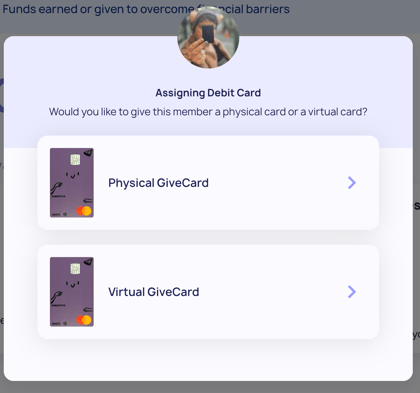
### **🌟 How to Assign a GiveCard (Physical or Virtual)**
1. Log in to the Samaritan Partner Portal \> [partner.samartian.city](http://partner.samartian.city)
2. Click Manage Funds.
3. Select Assign Debit Card.
4. Choose:
- **GiveCard** → for a physical card
- **Virtual GiveCard** → for a virtual card
**Important Requirements**
- Members can only have **ONE** type of card at a time. Either physical **OR** virtual—not both.
- Assigning a new card type will deactivate the previous card.
- Always confirm the member’s email before assigning a virtual card.
---
### **📦 Experience: Receiving a Physical GiveCard**
Physical GiveCards:
- Are handed directly to the member by your team
- Require only the last 4 digits for activation
- Use this when the member: **Prefers a physical card, Has limited or unreliable email access, Needs in-person support**
---
### **📱Experience: Receiving a Virtual GiveCard**
**Step 1: The Member Receives an Email or Text**
Sender: *GiveCard Team mailing@givecard.io*
Subject:*“You've received a Virtual GiveCard!”*
- Email includes a link to access their card
If they didn’t receive it:
- Confirm the email in their Samaritan profile
- Check spam/junk folders
- Search inbox for “GiveCard”
- If still missing, **contact support@givecard.io**
**Step 2: Instant Access**
Members will see:
- Available balance
- Card number, CVC, expiration
- PIN setup
- Transaction history
- Lock card feature
- GiveCard customer support info
**Step 3: Using the Virtual Card**
- Create a GiveCard portal account
- View full card details instantly
- Use the card online or in stores
***Givecard physical + virtual restrictions:***
Cannot be used at smoke shops, liquor stores, or for cash withdrawals through ATMs or money apps *(Cash App, Venmo, etc.*).
Critical Call-Out: Once activated, the email on file becomes **PERMANENTLY LINKED** to the virtual card. You cannot change this once a virtual card is activated.
Please ensure:●The email in their Samaritan profile is correct
●The member can access it reliably
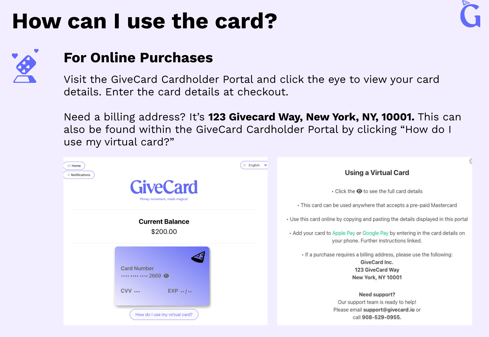
### **💡Helpful Tip: Zip codes**
For **physical cards** (including online purchases), the billing address is tied to Givecard and should be entered as:
65 W 95th St
New York, NY **10025**
USA
For **virtual cards** connected to a client’s mobile wallet, the ZIP code to use for purchases is **10001**.
---
### **🔄 Switching Between Card Types**
**If a Member Has a Physical Card and Needs a Virtual One:**
- Confirm their email
- Update their Samaritan profile first if needed (under your member’s samaritan profile, go to
the ‘Account’ tab to edit email)
- Close out the Physical Givecard under***Manage Funds***
- Assign a Virtual GiveCard under***Manage Funds***
- The virtual card replaces the physical one
**If a Member Has a Virtual Card and Needs a Physical One**
- Update the email only if needed before assigning
- Close out the Virtual Givecard under Manage Funds
- Assign a Physical GiveCard with the last 4 digits, under *Manage Funds*
- Physical card replaces the virtual one
**Important**: *Members cannot have both at the same time. Assigning one will deactivate the other.*
***Next Read: [View a Member's Balance](https://kb.samaritan.city/partner/view-a-members-balance?hsLang=en)***
- [General](https://kb.samaritan.city/partner/general?hsLang=en)
- [FAQs](https://kb.samaritan.city/partner/faqs?hsLang=en)
- [Getting started](https://kb.samaritan.city/partner/getting-started?hsLang=en)
[](http://www.samaritan.city?hsLang=en)
[mailto:email@email.com](mailto:email@email.com)
Copyright © 2026, City of Samaritans, PBC